
AI Website Accessibility Checks NZ: What to Automate and What Needs Human Testing
Build a review queue, not an accessibility certificate
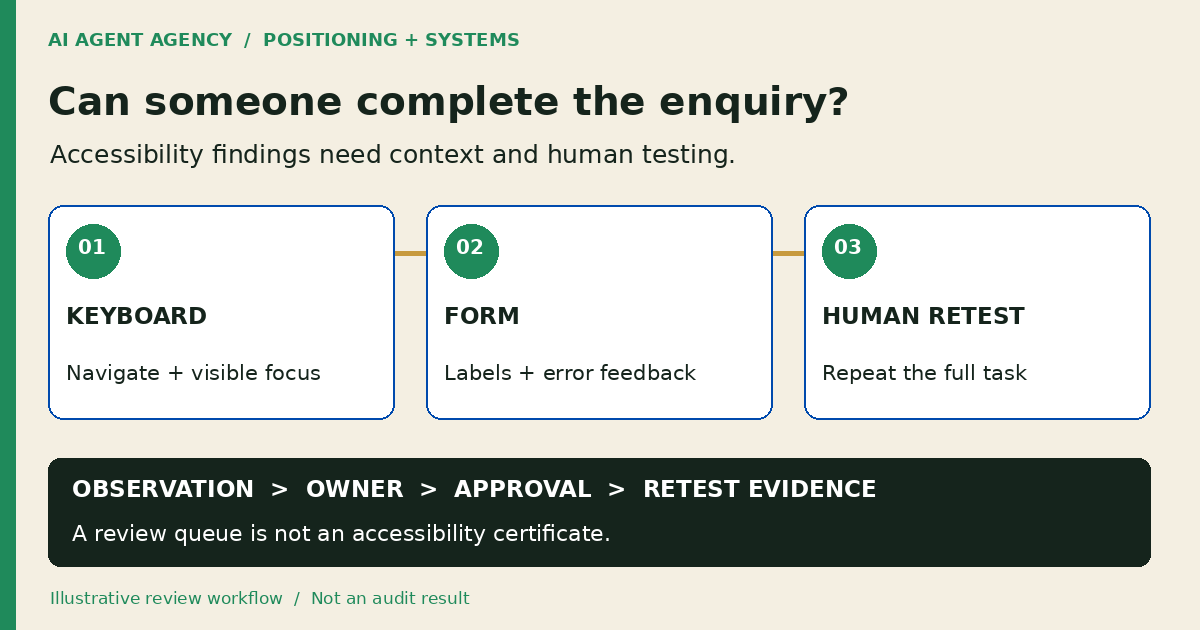
AI can organise website accessibility findings, draft fixes and track retesting. It cannot establish that your website is accessible or certify WCAG conformance. Combine automated checks with human testing of keyboard access, forms and key tasks. Bring in an accessibility specialist when you need a comprehensive evaluation or formal conformance claim.
For New Zealand business owners, start with one customer journey: can someone read your service information and make an enquiry? This guide gives you a review process and issue register, not an accessibility audit.
Can AI tell you whether your website is accessible?
A scanner can flag detectable problems; an AI assistant can help explain and group those findings. Neither is a substitute for checking how someone actually uses your site. W3C's evaluation overview says tools alone cannot determine whether a site meets accessibility standards; knowledgeable human evaluation is required.
Keep three things separate: an automated finding, a human-observed barrier and an untested area. A scanner returning no errors does not turn an untested checkout, menu or booking widget into a pass.
Define the review's limits
Write down the pages, tasks, device/browser combinations and states included. Record what remains untested. Call a limited review a limited review, rather than describing the whole website as accessible.
Start with one complete enquiry journey
1. Pick a task and its stopping point
Choose a real task such as finding a service, opening the enquiry form, correcting an error and recognising completion. Include the mobile menu and any embedded booking tool, not just the homepage. Arrange permission before sending a test enquiry; use synthetic details and avoid repeated notifications.
Record where the journey starts, which controls it uses and what completion should look like. Then place repeat checks into your website maintenance cadence. This is different from checking that pages simply load.
Combine automated findings with human checkpoints
2. Collect findings without granting publishing access
Save the scanner name, run date, URL and affected element. Ask AI to group repeated findings and draft a plain-English issue description. Keep the original evidence alongside it. Treat suggested code changes as proposals requiring developer review, not instructions to apply automatically.
3. Walk the task without a mouse
Use the keyboard to move through navigation and form controls. Check that focus is visible, the order makes sense and you can leave menus or dialogs. Increase text size or zoom and check whether important content or controls disappear. W3C's Easy Checks provides a starting point, while warning that quick checks are not comprehensive.
4. Test form errors and completion feedback
Check labels and instructions, then try a missing required value and an invalid entry in an authorised test. Can you identify the problem and correct it? Does success feedback communicate completion? W3C's form-notification guidance explains clear error and success feedback. Include appropriately skilled assistive-technology testing; a sighted mouse check cannot answer every question.
Usable interaction and actual delivery are separate checks. Use the enquiry delivery checklist to trace an authorised submission to its intended inbox or CRM.
5. Review images in their page context
AI may draft alternative text, but a reviewer must decide what the image communicates or does. A linked icon may need its action described; a decorative image may need empty alternative text. Follow W3C's alt decision tree. Do not approve a caption merely because it describes visible objects accurately.
Copy an accessibility issue register
Use one row per barrier in your spreadsheet or issue tracker. Separate evidence from proposed fixes so a plausible AI explanation cannot quietly become a verified observation.
| Field | What to record |
|---|---|
| Location | Exact URL, component and page version |
| Task and state | User goal; menu, error or completion state |
| Observation | What happened and how it interrupted the task |
| Evidence | Reproduction steps, screenshot or test output |
| Environment | Browser, viewport, input method and assistive technology used |
| Decision | Impact, priority, owner and any specialist question |
| Proposed change | Draft fix, reviewer and approval decision |
| Retest | Tester, date, result, evidence and remaining limitations |
Remove personal details from screenshots and test records. Restrict access when findings expose private pages. Do not upload customer submissions or authenticated page captures to an AI service without the appropriate permission.
Set priorities around the task that is blocked, not just the scanner's label. Give each accepted issue an owner. An unclear finding stays marked for investigation rather than being counted as fixed.
Worked example: the enquiry error nobody can find
This is an illustrative scenario, not a client result or a test of this website. A service business reviews an enquiry form. After an invalid email entry, a coloured border appears, but the keyboard tester cannot locate a useful error explanation.
The issue owner records the exact steps, affected field, browser and observed behaviour. AI drafts a description and candidate fix; a developer reviews the implementation and a tester checks the revised journey. Relevant assistive-technology testing is included rather than inferred from the screenshot.
Closing the item requires evidence that the original problem no longer blocks the task, plus a check that the change did not break submission. If another device remains untested, the record says so. “Fix deployed” and “barrier retested” are different statuses.
When should you involve an accessibility specialist?
Engage a specialist for a comprehensive evaluation, formal conformance reporting, complex custom interactions or barriers your team cannot assess reliably. Agree the scope and test approach before commissioning the work. Do not turn this checklist or an AI-generated report into a compliance statement.
For recurring observations, an AI webmaster workflow can prepare the queue while people retain testing and publishing decisions. For a small, rarely changing site, a shared register and scheduled human review may be enough; an agent is not automatically the right investment.
Frequently asked questions
Can AI perform a complete accessibility audit?
No. AI can assist with organising evidence and drafting recommendations, but it cannot replace the knowledgeable human evaluation needed for a comprehensive accessibility assessment.
What is the difference between an automated scan and human testing?
A scan checks detectable patterns in the content it reaches. Human testing examines interaction, meaning and task completion, including states and barriers the scan may miss.
Which website journey should a small business check first?
Start with an important customer task, such as reading a service page and making an enquiry. Include navigation, errors and completion feedback, not only the landing page.
Should AI-generated alternative text be published automatically?
No. Review the image's purpose in context. Alternative text may need to explain information or an action; decorative images may need empty alternative text instead.
When should we hire an accessibility specialist?
When you need comprehensive evaluation, formal conformance reporting, specialist assistive-technology testing or help with complex barriers. Agree what the specialist will test and report.
Decide whether a recurring review queue is worth building
Bring one website journey and its recurring review tasks to the NZ$1,000 AI Agent Assessment. We can assess the workflow's evidence needs, access boundaries and human approval points before recommending automation.
The assessment is not an accessibility audit or compliance certificate, and it does not include implementing or verifying website accessibility fixes.