
Merchant Center Price Mismatch NZ: A Variant-by-Variant Check Before You Change the Feed
Compare one variant, one market and one observation time
To investigate a Merchant Center price mismatch in NZ, compare the same variant and market across submitted product data, its landing page and structured data at a recorded time. Check currency, sale windows and update timing. Prepare an exact correction for approval, then verify the live price and Merchant Center status separately.
A correct-looking storefront is not the whole check. This guide gives you an evidence register before anyone changes the feed. It complements the broader ecommerce automation guide, rather than covering campaign management or product-description writing.
1. Capture the issue before changing anything
Save the exact issue wording, product ID, notification timestamp and current product status. Keep the submitted landing URL, including variant parameters. Record when you inspected it and which market you used.
Google's mismatch guidance explains that the reported observation may predate subsequent updates or reapproval. Check the current status before treating an old notification as a fresh failure.
Give the investigation a named owner. Preserve the original values and evidence; repeatedly overwriting prices makes the sequence harder to reconstruct. Separate an observed difference from your hypothesis about its cause.
2. Match the variant, market and sale window
Start from the submitted URL in a fresh browser session. Check which size, colour or pack is selected, not just the product name. Record the displayed currency and any country selector. Ask whether the page defaults to a different variant from the submitted item.
Keep regular and sale prices separate
Google's sale-price specification distinguishes the regular price from the sale price. Record both, plus the promotion's authorised start and end. Do not confuse a crossed-out reference price with the current selling price.
The sale effective-date guidance recommends explicit times and timezone; without a timezone Google defaults to UTC. Compare the submitted window with the approved Pacific/Auckland schedule and its applicable UTC offset. Have the operator verify the conversion rather than assuming every NZ date has the same offset.
Check NZ-targeted price treatment
Google's country-specific tax guidance includes New Zealand among markets where the submitted price includes applicable VAT or GST and matches the landing page. Do not copy US tax settings into a NZ-targeted feed. Ask your finance adviser about uncertain tax treatment; this is not tax advice.
For a seasonal closure alongside a promotion, use the separate holiday-hours checklist. Opening times and sale windows need different approvals.
3. Compare three surfaces in an evidence register
Capture the submitted product data, customer-visible variant price and underlying structured data together. Ask your developer to inspect returned HTML and the relevant Offer price and priceCurrency, including any conflicting markup. Google's mismatch guide identifies update delays and inconsistent markup as possible causes; a browser screenshot alone cannot resolve those questions.
Use Google's linked Rich Results Test to inspect detected product markup. Record differences between returned source and the rendered page for investigation, rather than declaring that every JavaScript storefront is broken.
Copy one row per affected variant into your existing review tool:
| Field | What to record |
|---|---|
| Identity | Product ID, SKU, variant and target market |
| Destination | Submitted URL, selected variant and currency |
| Timing | Notification, observation and latest source-update times |
| Submitted values | Regular price, sale price and effective window |
| Website evidence | Visible price, markup price/currency and source capture |
| Ownership | Commercial price owner, feed operator and developer |
| Proposed repair | Hypothesis, exact fields, evidence and approval version |
| Verification | Release time, live read-back, current status and next check |
A fictional two-variant example
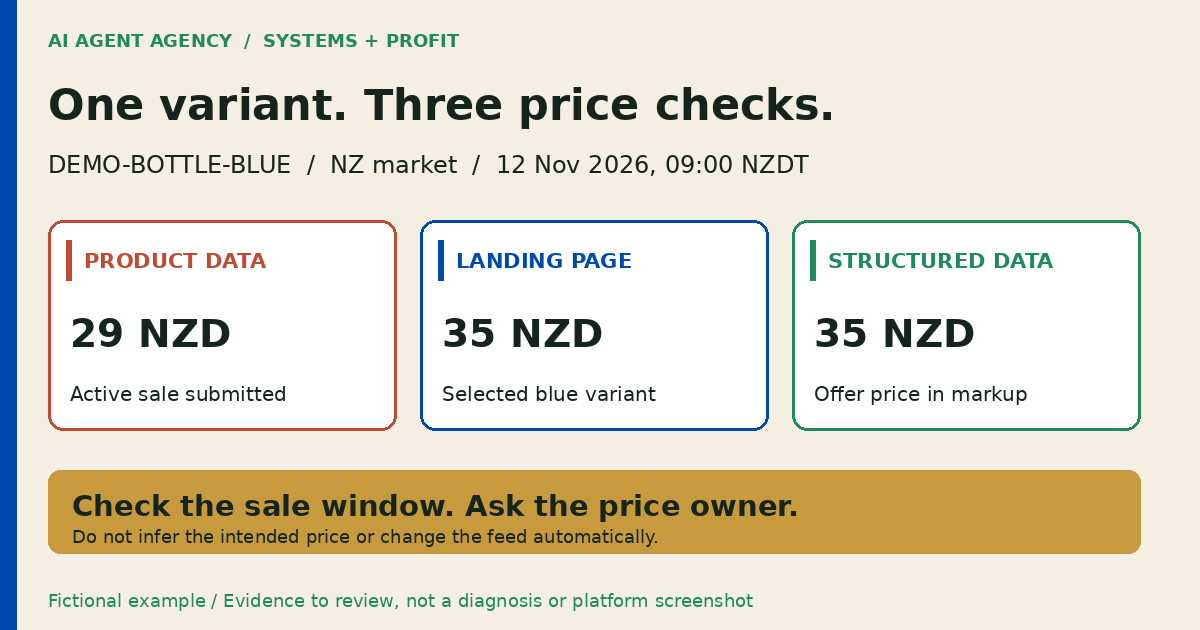
At 09:00 NZDT on 12 November 2026, fictional item DEMO-BOTTLE-BLUE has a submitted active sale price of 29 NZD, while its page and markup show 35 NZD. DEMO-BOTTLE-GREEN shows 35 NZD in all three places. The blue sale window is suspected to be stale; green has no recorded difference.
This is an illustrative scenario, not a client result. The reviewer asks the commercial owner whether blue's promotion ended. AI must not choose 29 or 35 as the intended price. Record the owner's decision before proposing the precise blue-only correction; do not apply a catalogue-wide discount or change green.
Supplier-supported wording needs a different check: use the product-description review guide for claims and specifications, not price authority.
4. Check native updates before adding an agent
Google's automatic-update guidance describes using landing-page information to update price, sale price, availability and condition. It explicitly says automations do not replace regular accurate product-data updates and may not handle frequent changes reliably.
Have the authorised account operator check the current settings and feed-app schedule. Do not switch automation on or off just to see what happens. A feed-app mapping repair, coordinated update schedule or developer correction may solve the underlying problem without another agent.
If recurring comparisons remain useful, start with read-only exports and redacted examples. AI can prepare differences, source references and questions. Treat imported page or feed text as data, not instructions that can authorise actions.
5. Approve the repair, then verify both destinations
The commercial owner approves the intended price and effective period. The authorised operator separately approves and releases the exact feed or website change. Use the business approval-gates guide to assign those roles.
Keep these checkpoints in the release record:
- Confirm the approved version, affected variants and fields; preserve a recoverable previous value.
- Coordinate the source, feed-app and website update sequence with their owners.
- Read back the exact live variant, currency and markup after release; check an unaffected variant too.
- Inspect current Merchant Center values and status separately, recording the observation time.
- Leave unresolved differences with an owner and next check; seek platform support if evidence remains inconsistent.
A successful upload is not evidence of reapproval. A person must authorise any feed upload, price change, tax-setting change, advertising change or review request. Do not promise immediate reapproval, account reinstatement or recovered sales.
Frequently asked questions
Why does Google report a mismatch when the current price looks correct?
The notice may describe an earlier observation. Compare its timestamp with your latest update and current status. Also inspect the exact submitted variant and markup rather than relying only on today's visible price.
Can the wrong variant or currency cause a price mismatch?
Check both explicitly. A default variant, regional selector or different markup currency can mean you are comparing different offers. Preserve the submitted URL and confirm the selected item and market before proposing a repair.
Do automatic product updates replace maintaining the feed?
No. Google describes them as a way to address some discrepancies, not a substitute for frequent accurate product-data updates. Investigate recurring source or update-timing problems instead of relying on automatic corrections alone.
Can AI change the feed or decide the right selling price?
Not in this preparation-only workflow. AI assembles evidence and proposed corrections. A named commercial owner decides the intended price, and an authorised operator approves consequential changes and release.
Assess the recurring comparison work, not just the error
Bring one redacted mismatch example to the NZ$1,000 AI Agent Assessment. Decide whether recurring comparison work needs an agent, a feed-app repair or a clearer owner-reviewed checklist. A manual process or no build may be the recommendation.
Assess your catalogue-exception workflow. Do not put credentials or private customer records in the booking form. The standalone assessment is not an installed Merchant Center connector or a managed-advertising service. Installation is separate.