
WordPress Missed Schedule? A Publishing Checklist for NZ Businesses
Check the schedule, then verify the public page
A WordPress missed schedule can happen when a scheduled publishing task does not run at the expected time. Default WP-Cron checks for due tasks on page loads, so a quiet site may publish late. Check approval, post status, site timezone and hosting scheduler, then verify the public URL before retrying. WordPress explains how WP-Cron works.
This checklist is for NZ owners and marketing operators using self-hosted WordPress. Managed hosts may replace default scheduling; WordPress.com has its own scheduling guidance. Confirm your service before applying configuration advice. This is a diagnostic checklist, not a claim that AI Agent Agency's site runs WordPress.
1. Confirm the approved post, status and NZ time
First establish what should have happened. A draft awaiting review is not the same problem as an approved, scheduled post that is overdue.
Read the status before changing it
WordPress distinguishes draft, pending, scheduled and published statuses. Record the post ID, intended public URL, saved status, approved version, publication date and expected time. Confirm the schedule was saved, not merely discussed in an editorial calendar.
If approval is missing, send the post to its reviewer. Do not press Publish to clear an operational alert. If the post is already published but looks absent, move to public-page verification rather than scheduling another copy.
Check Auckland, not an assumed UTC offset
Under Settings → General, have an authorised administrator check the site's timezone and displayed local time. For publishing to mainland NZ time, use Auckland rather than a fixed UTC offset. WordPress recommends a city-based timezone, including for locations observing daylight saving.
Write the intended date and local time in the incident record. After an approved timezone change, recheck existing scheduled posts instead of assuming their intended timing is preserved.
2. Check WP-Cron and hosting before adding a plugin
Ask your maintainer how scheduled tasks are triggered on this particular site. Low traffic can delay default WP-Cron, but that does not diagnose every missed post.
Send a specific request to the host
Provide the post ID, expected time, observed status and when you checked. Ask whether a host-managed scheduler already exists, whether it ran, and whether task failures or blocked requests explain the delay. Include recent plugin, security or hosting changes as investigation clues, not proven causes.
WordPress documents using a system task scheduler to trigger scheduled work independently of visits. Its procedure replaces page-load triggering after setting up the external task. Do not disable WP-Cron before a working alternative is in place.
Only an authorised maintainer should alter server jobs or configuration, after testing and with a recovery plan. Agree how to observe the next scheduled execution. Installing another missed-schedule plugin without checking the existing arrangement can obscure the problem rather than explain it.
3. Verify publication before retrying anything
Check what visitors can actually read, not just the dashboard. A published status and a successful scheduler request are different evidence from the correct public content.
Check the destination independently
- Open the intended public URL logged out, not an editor preview.
- Confirm the final URL, title, approved text, images and relevant offer links.
- Check the publication date and note the actual observation time separately.
- If the public copy differs, ask the maintainer to check page or CDN caching before changing the post again.
- Review connected emails, feeds and social plugins before authorising a retry.
A stale page can look like a failed publication. Equally, an HTTP 200 can serve the wrong page. Use the result-verification checklist to separate job success from the intended outcome.
Illustrative example, not a client result: the editor sees Published, but a logged-out visitor sees yesterday's text. Record both observations and escalate the cache/content mismatch. Do not create a duplicate post or replay every publishing-related job; some downstream actions may already have happened.
4. Give each publishing stage an owner and evidence
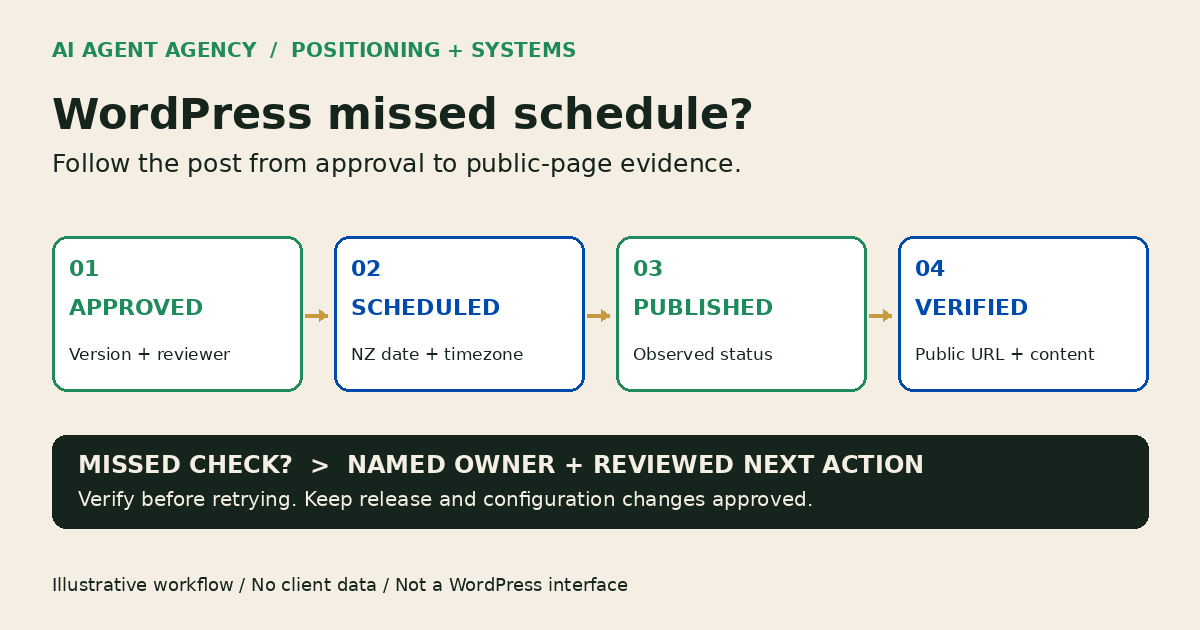
Use four explicit stages: approved → scheduled → published → independently verified. These are suggested operating checkpoints, not four interchangeable labels for “done”.
Copy this publishing handoff record
- Approved: Reviewer, approved version and permission to release it.
- Scheduled: Operator, post ID, intended URL, date, local time and timezone.
- Published: Observed status and any scheduler or error reference.
- Verified: Logged-out URL, content checks, observation time and checker.
- Exception: Responsible person, affected downstream actions and next check.
Set a review window appropriate to the content. A time-sensitive announcement needs an explicitly assigned check; a routine article may use a simpler reminder. Avoid storing credentials or unnecessary customer data in the record.
An agent can prepare page observations, compare approved copy and draft an exception summary. Keep publishing, rescheduling and configuration changes human-approved. If your editorial approval also uses Microsoft flows, separately review the Power Automate owner-handover checklist; a healthy WordPress scheduler does not establish that those connections still work.
5. Choose a host fix, workflow fix or agent review
Start with the smallest repair supported by evidence. A broken scheduler needs technical attention, not an AI replacement.
Match the next action to the finding
If the host confirms a scheduling fault, have the maintainer repair and test it. If the post never received approval or a saved schedule, clarify the editorial handoff. If publication succeeded but nobody checked, add a named verification step.
Use website maintenance checks beyond scheduled publishing for the wider operating rhythm. Review what an AI webmaster agent should—and should not—do only when recurring observation and exception work justifies it. A calendar reminder may be enough for a small publishing queue.
Frequently asked questions
Why did my scheduled WordPress post not publish?
Check the saved status, approved date, site timezone and scheduler evidence. Default WP-Cron may run late without page loads, but hosting or task failures also need investigation. A stale public page is a separate possibility; verify before retrying.
Can low traffic delay WordPress scheduled posts?
Yes, when the site relies on default page-load-triggered WP-Cron. Ask whether your host already provides an independent scheduler before treating visitor numbers as the cause or adding another scheduling tool.
Which timezone should a New Zealand WordPress site use?
For mainland NZ publishing time, check Auckland in Settings → General and confirm the displayed local time. A city-based setting handles daylight-saving rules; a fixed UTC offset is not a year-round substitute.
Should I disable WP-Cron or install a missed-schedule plugin?
Not as a blind first step. Have your authorised maintainer inspect the current trigger and failures. Do not disable WP-Cron before an alternative works; test any approved configuration or plugin change and verify a scheduled publication.
Can an AI agent monitor publication without publishing automatically?
Yes. Scope it to read-only observations and exception reports. A human should approve release, retries and configuration changes. A simple reminder or deterministic monitor may suffice without an agent.
Assess the workflow, not just the missed post
If missed posts reveal unclear website ownership, use the NZ$1,000 AI Agent Assessment to assess your website and content workflow. Decide what to fix, automate or keep under human control.
The standalone Assessment is not emergency WordPress support or guaranteed publication recovery. Installation is separate scope. A straightforward hosting repair may be sufficient. Bring a redacted publishing record, not passwords or customer data.